Watch the setup
A walkthrough of the same setup covered here. The narration is in Japanese; English subtitles are switched on by default.
1. Introduction
Coffee Hazel measures ΔH₂O — the change in steam — in real time during a roast, and detects the timing of first crack automatically.
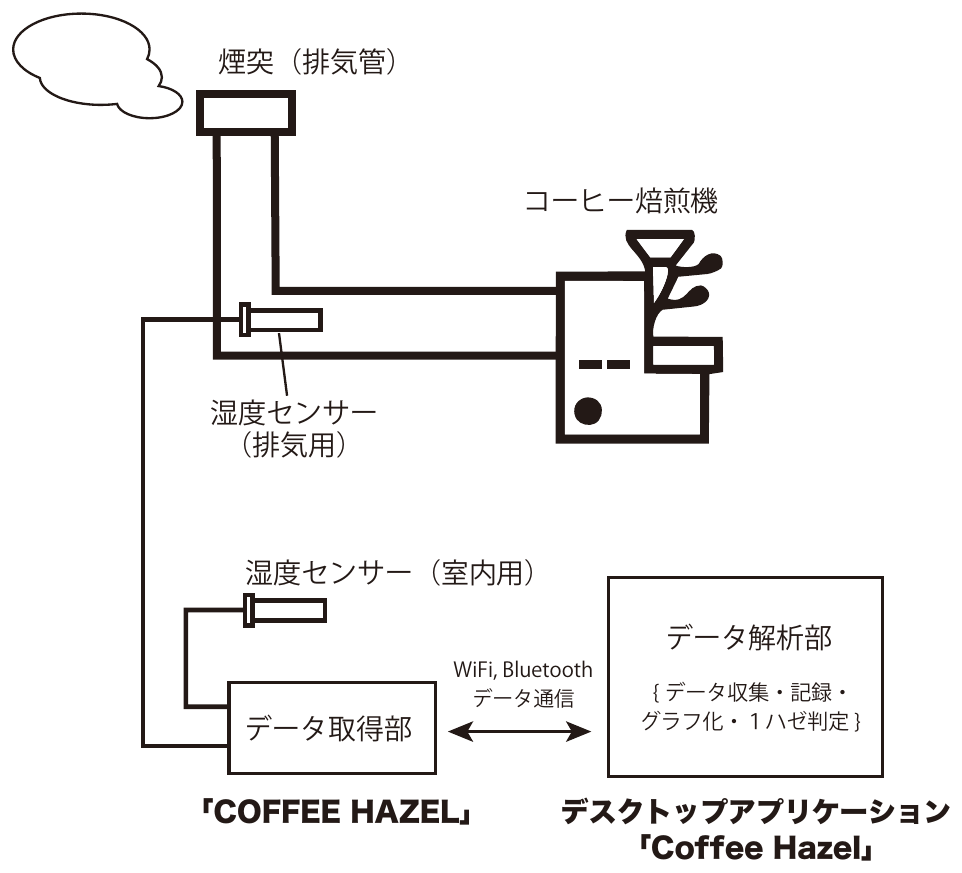
The system is made of a sensor fitted inside the roaster's exhaust duct, a second sensor that measures the air in the room, the unit that joins them and collects the readings, and a desktop application.
First crack is what happens when heating raises the pressure inside the bean's cells until the cell walls break and steam is released. A characteristic sound comes with it.
Roasters have traditionally judged first crack by that sound. But it is affected by the quantity of beans, their number, their size and their moisture content, so the sound alone makes it hard to place first crack accurately.
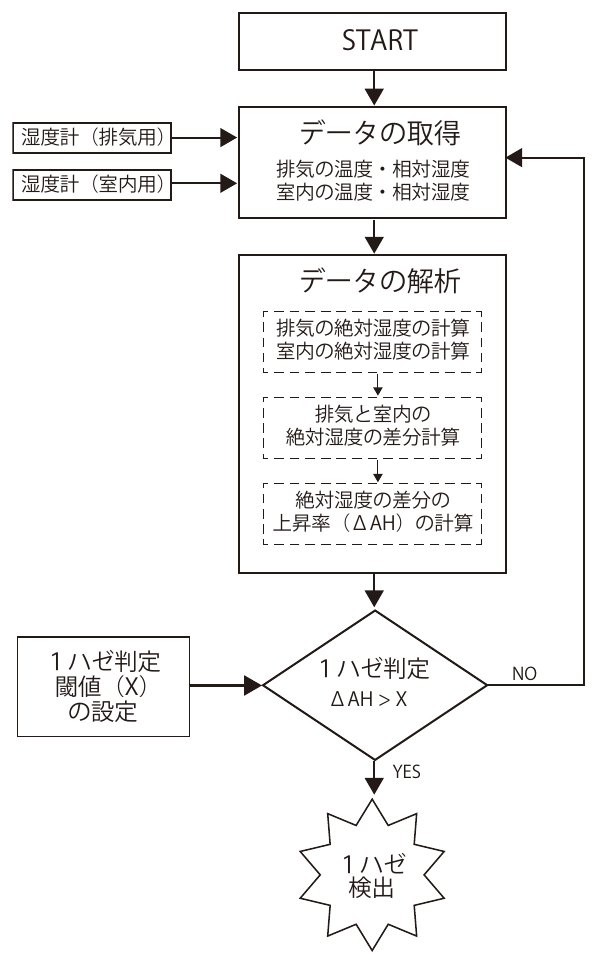
This system reads the change in the amount of steam in the exhaust instead. By taking the difference against the steam in the room air, it looks only at the water coming out of the beans.
2. Copyright
Copyright in this system belongs to SORAMAME LAB INC.
Patent pending (application number JP 2026-177291).
3. In the box
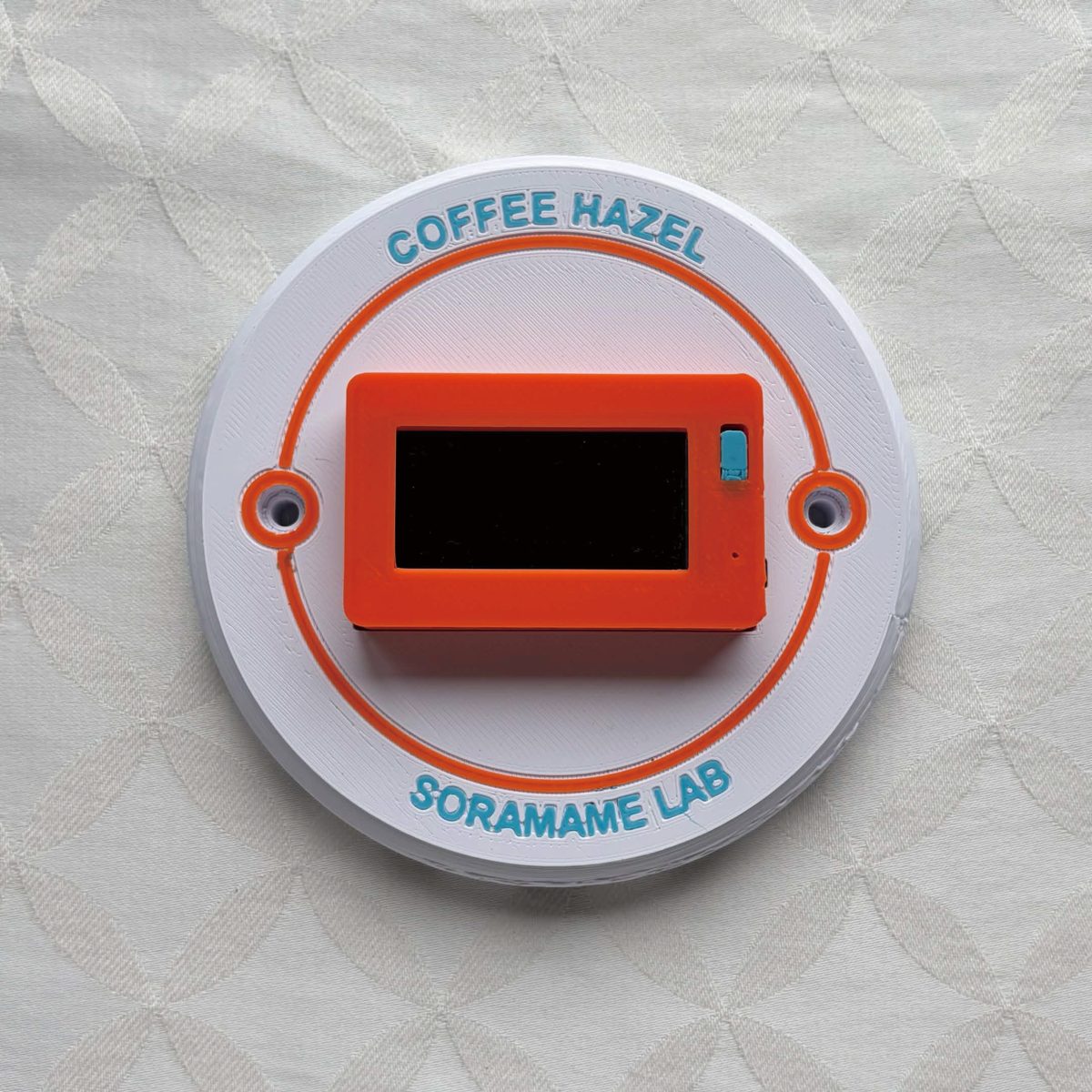
- The COFFEE HAZEL unit
- Non-woven fabric bags (5)
4. What you need
- Wi-Fi (2.4GHz) or Bluetooth
The 5GHz band is not supported. - A roaster
- with an exhaust duct or chimney
- where the temperature inside the duct at the sensor position stays below 80°C
- where the exhaust, even after being diluted by outside air, still carries enough steam to measure
- where the exhaust flows out properly rather than stagnating
- A computer or a smartphone
Computer: Windows 10 or 11, macOS (Intel or Apple silicon), or Ubuntu
Smartphone: iPhone or Android with a browser (Safari / Chrome). No app to install — see 12. Using it from a smartphone
5. What to prepare
- A USB Type-C cable
- A USB power source
6. The unit
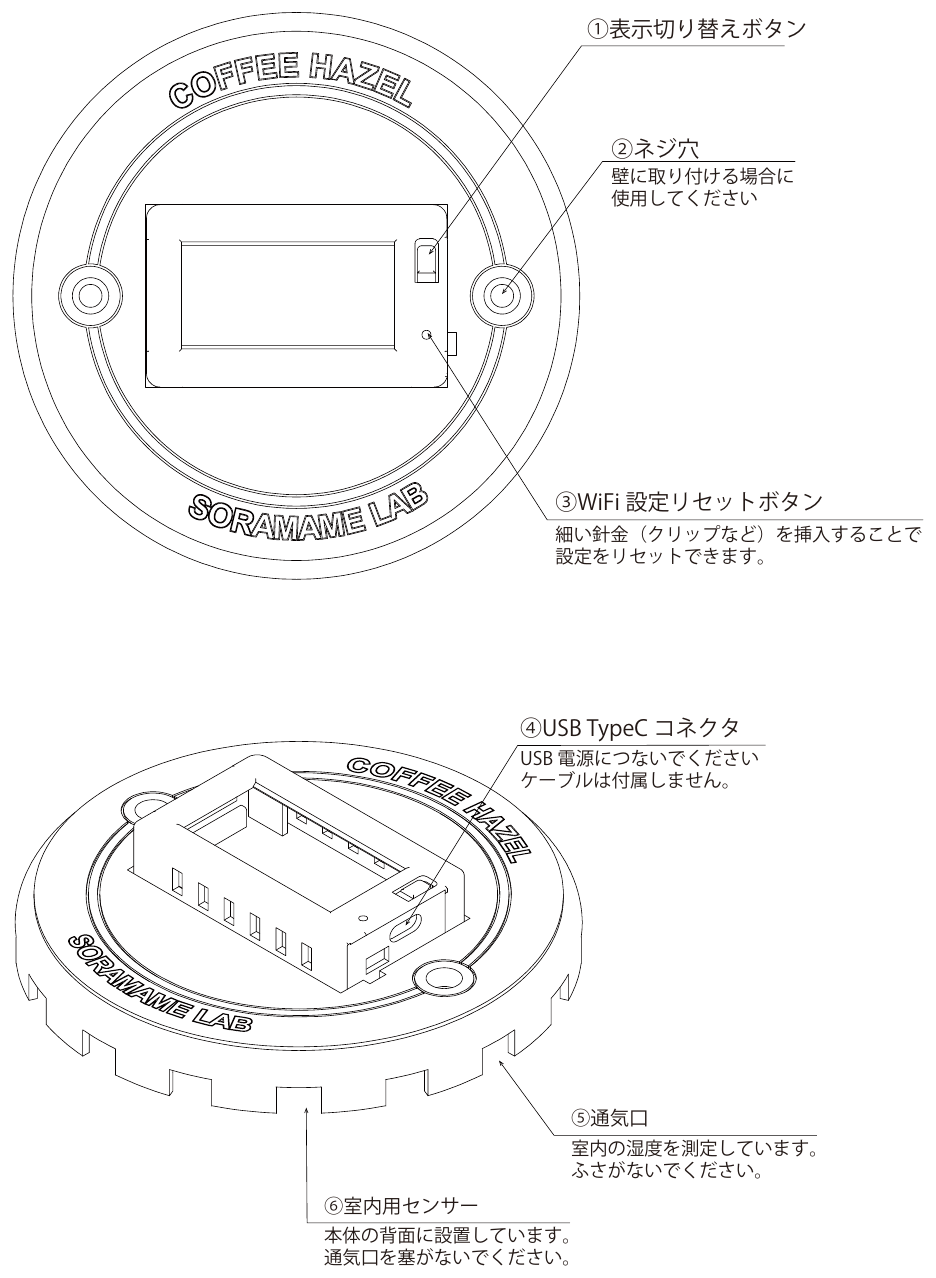
- Display button
- Screw holes — for mounting the unit on a wall
- Wi-Fi reset button — insert a thin wire, such as a straightened paperclip, to clear the Wi-Fi settings
- USB Type-C connector — connect to a USB power source (cable not included)
- Vent — the humidity of the room is measured through here. Do not block it
- Room sensor — fitted on the back of the unit. Do not block the vent
7. Connecting to Wi-Fi
Have the SSID and password of your 2.4GHz Wi-Fi to hand before you start.
On first power-up, in a new Wi-Fi environment, or after pressing the Wi-Fi reset button, the COFFEE HAZEL display shows the following.
1.Connect your phone to:
"Coffee_Hazel_Setup"
2.A setup page will open.
(or visit 192.168.4.1)
3.Select your WiFi & enter password.
(60sec timeout -> Bluetooth mode)
Open the Wi-Fi settings on your phone.
- Choose the network named "Coffee_Hazel_Setup" and join it
- "WiFi Manager" appears
- Choose "Configure WiFi"
- The 2.4GHz access points within reach are listed
- Tap the Wi-Fi you want to use and enter its password
- Tap "Save"
- When the connection succeeds, the display on the unit changes
Once connected, the data screen shows the unit's IP address. You will need it to talk to the desktop application, so make a note of it.
Giving the unit a fixed IP address
Depending on your router, the unit's IP address may change when it is powered off and on, or when it reconnects. If it changes, you have to point the desktop application — and Artisan — at the new address each time. Fixing the address saves that trouble.
To set it:
- Note the current IP address shown on the data screen (for example 192.168.0.183)
- Press the Wi-Fi reset button to open the setup screen, and join "Coffee_Hazel_Setup" with your phone
- Choose your Wi-Fi and enter the password
- Type the address you want into "Static IP (leave blank for DHCP)"
- Tap "Save"
The address you enter has to meet these conditions.
- It must be on the same network you are using now — the first three numbers the same, for example 192.168.0.xxx
- It must not clash with another device
- A number outside the range your router hands out automatically is safest. You can find that range in your router's settings
Many routers can also reserve a fixed address for a particular device — often called DHCP reservation or static assignment. If your router offers it, that is the more reliable way.
8. Connecting over Bluetooth
Where 2.4GHz Wi-Fi is not available, the unit can connect over Bluetooth.
If the Wi-Fi setup screen is left untouched for 60 seconds, the unit switches to Bluetooth mode by itself.
With the unit in Bluetooth mode, open the desktop application "Coffee Hazel" (V2.2.0 or later) on your computer and choose "Bluetooth" as the connection mode.
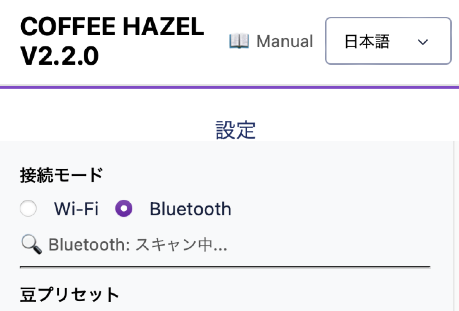
Over Bluetooth, only one Coffee Hazel can be connected.
Artisan cannot be connected over Bluetooth.
9. Fitting the exhaust sensor
The exhaust temperature where the sensor sits must not exceed 80°C. Measure it beforehand with a thermometer.
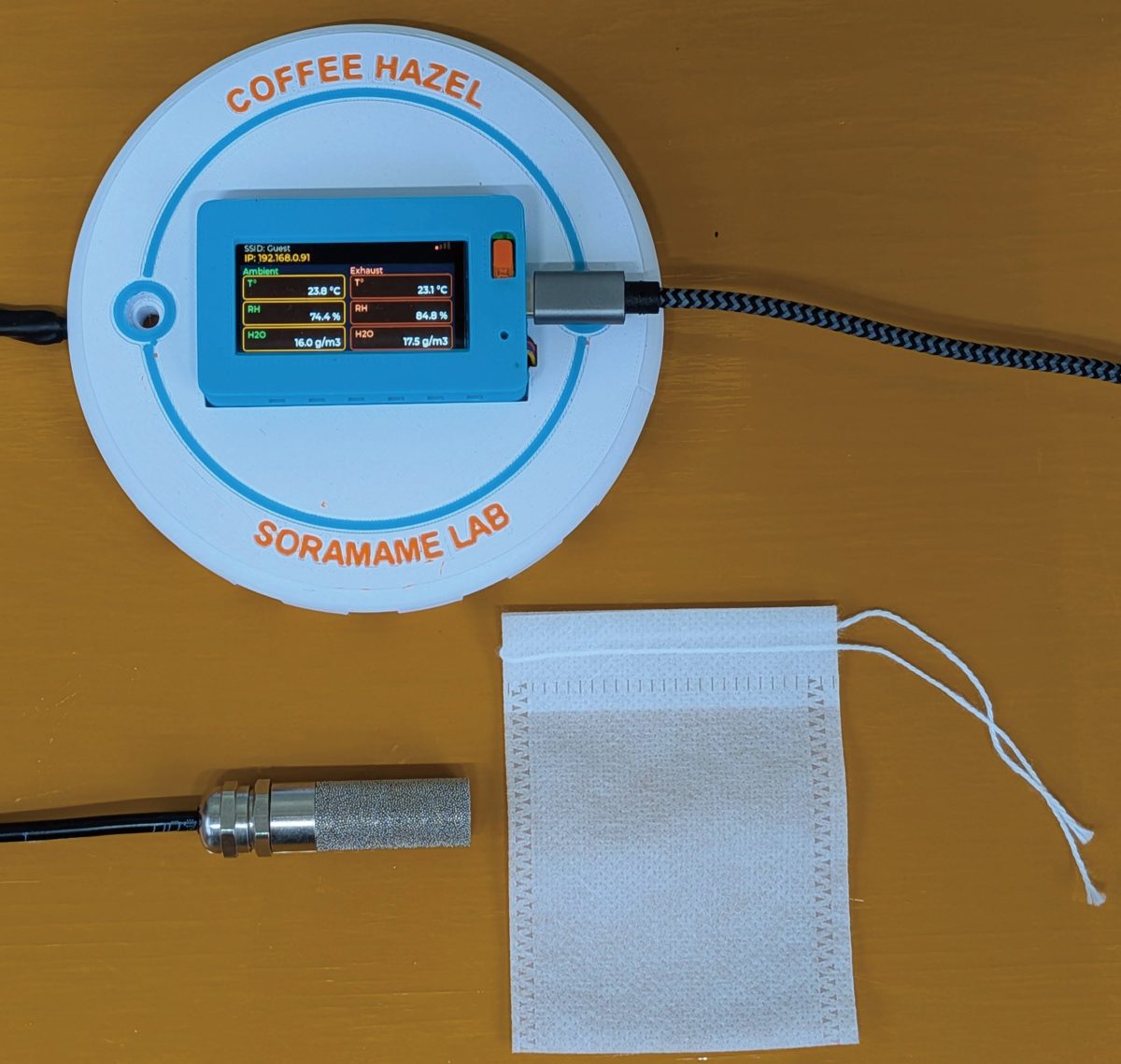
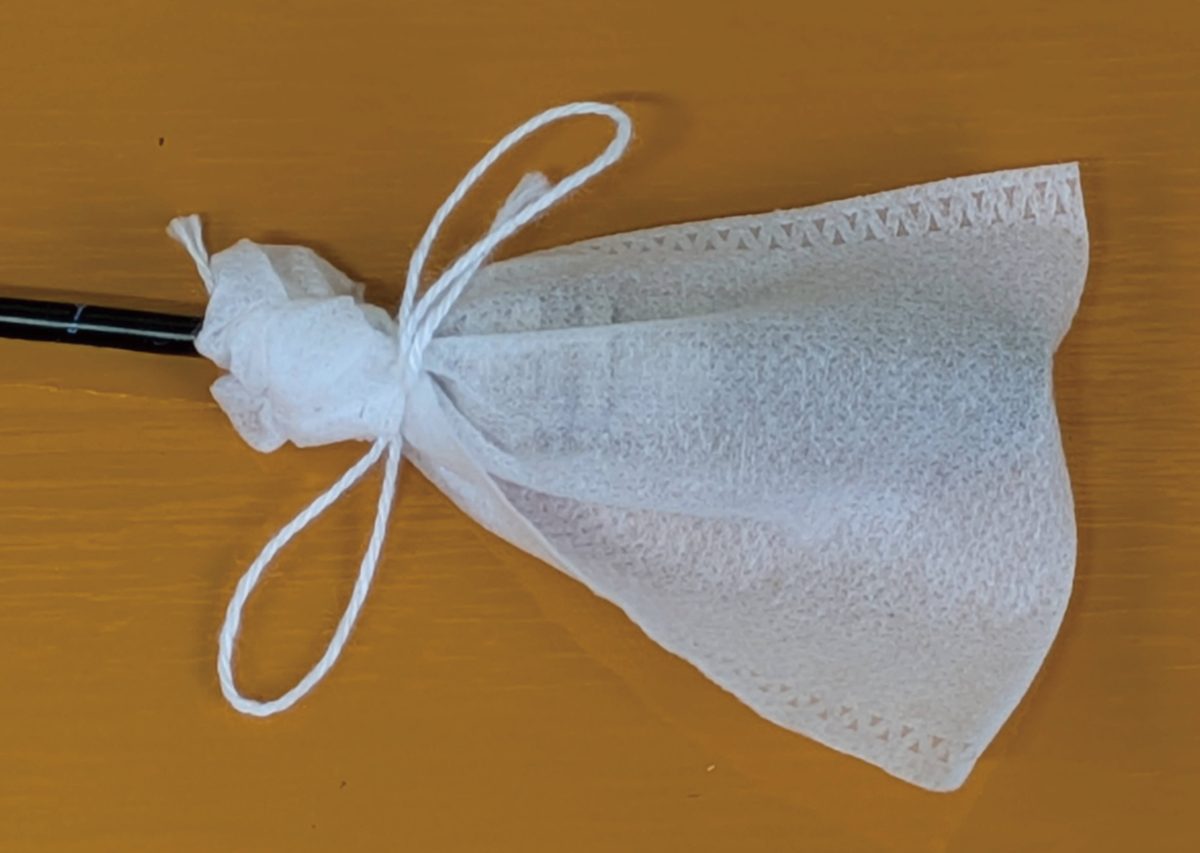
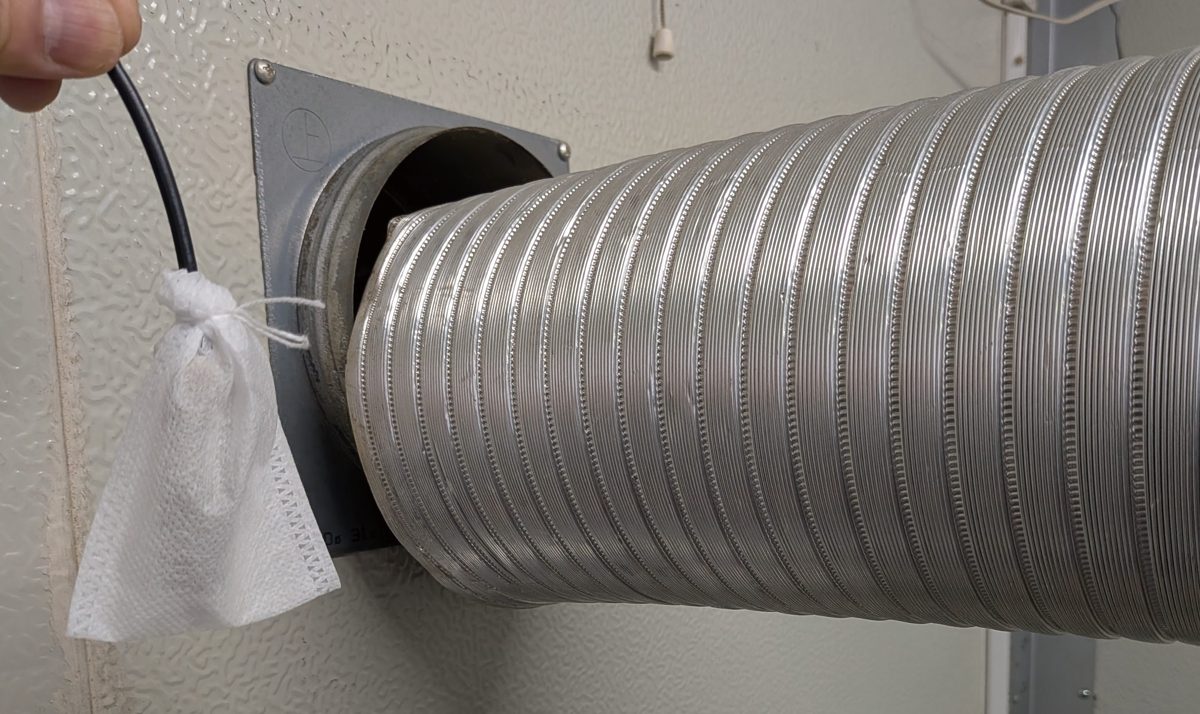
There is a lot of dust inside an exhaust duct, so wrap the sensor housing in non-woven fabric. A drawstring tea bag from a supermarket works well.
Replace the fabric regularly.
Roasters with a chimney-style exhaust duct
Fit the sensor inside the duct, then seal thoroughly with aluminium tape so that no exhaust escapes.
A joint in the duct downstream of the chaff collector (cyclone) is the best place.
Check that the temperature inside the duct is below 80°C.
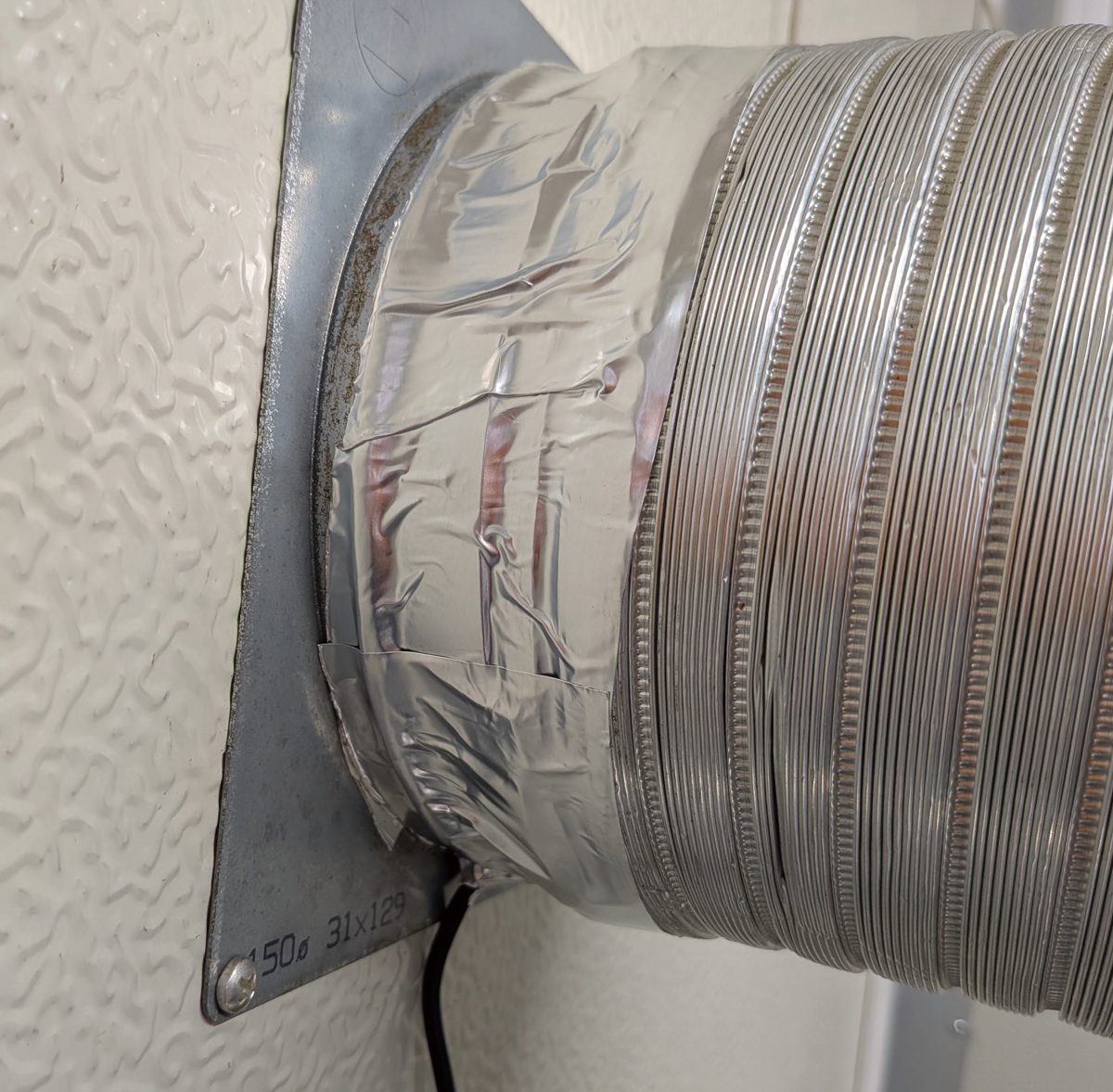
Roasters without a chimney
Example: Aillio Bullet Roaster
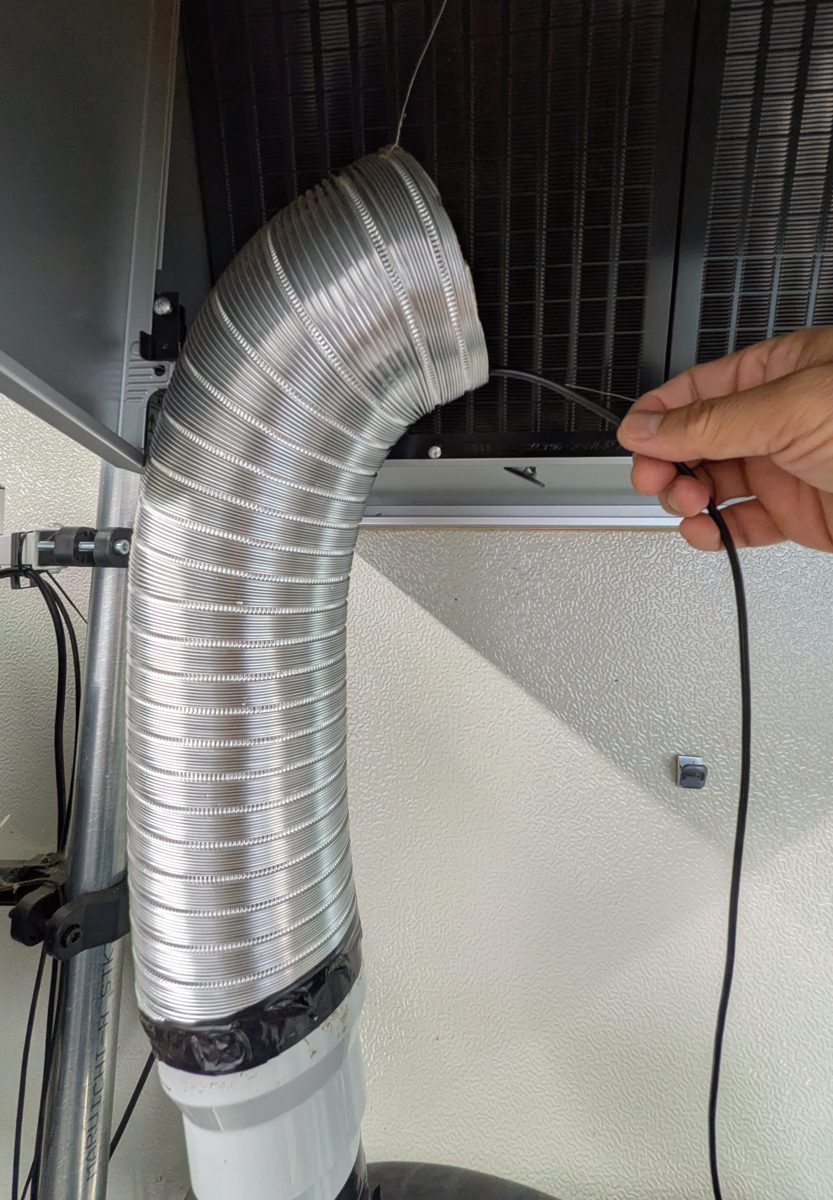
Example: WE×SUJI Mini Roaster
Connect the aluminium duct of the Coffee Hazel Small Roaster Option (without hood) directly to the roaster's exhaust, and let the exhaust fan carry the air outdoors while you measure. The sensor sits in the tube on the fan side.
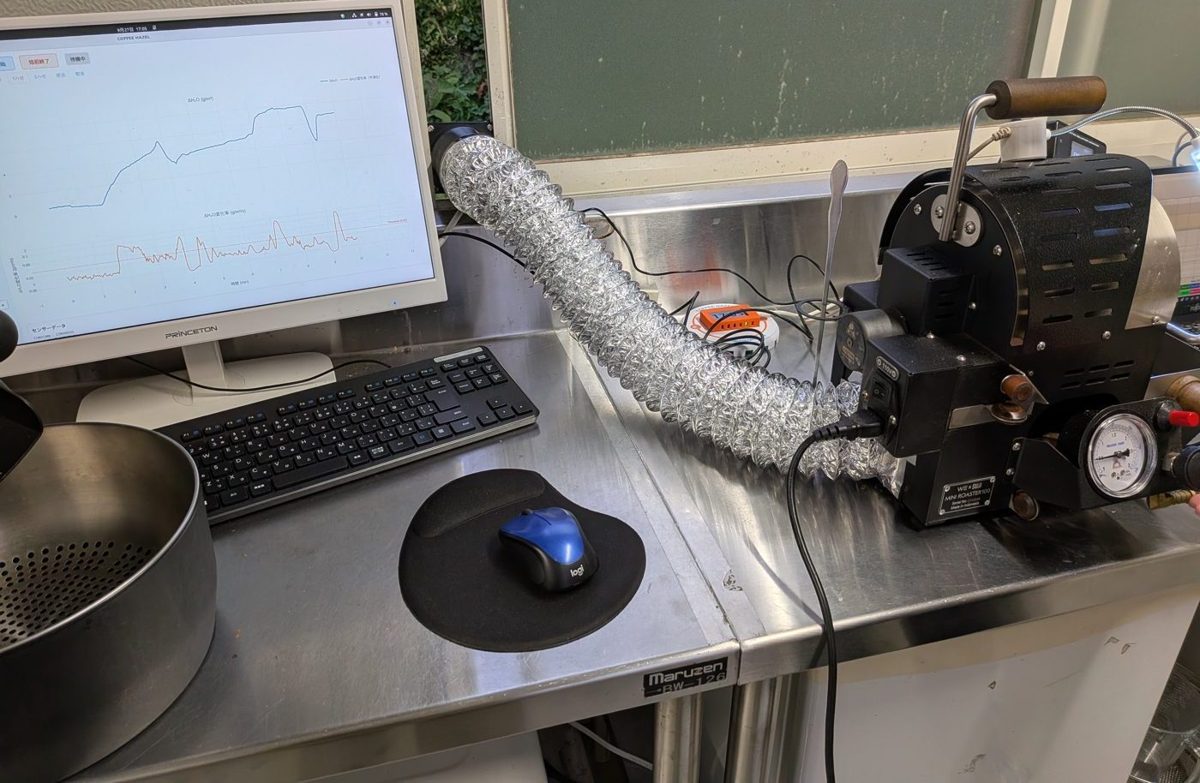
A set of aluminium duct, exhaust fan and fan speed controller. It comes in two versions: without hood, for connecting the duct directly to the roaster's exhaust, and with hood, for collecting the exhaust with a hood hung above the roaster.
Installation examples and measurements (in Japanese): WE×SUJI Mini Roaster, hand roasters.
Ask about the Small Roaster Option
Anything else
Please get in touch and we will advise.
10. Switching screens
Pressing the display button (1) cycles through the screens.
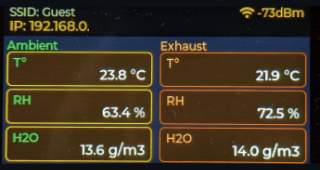
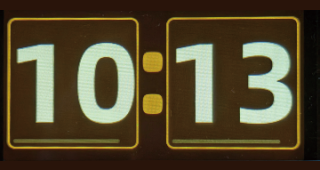
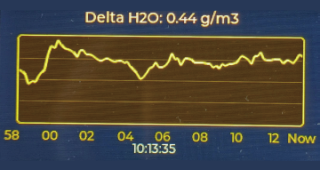
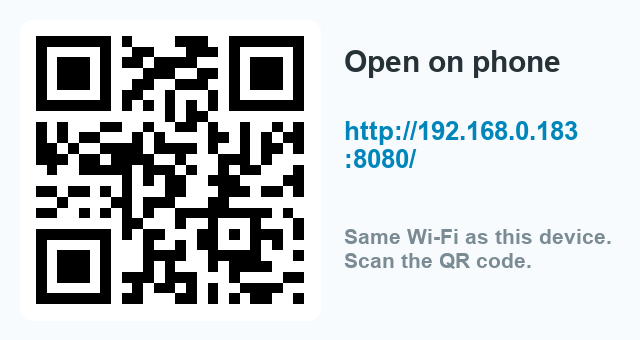
The QR code screen is only shown while connected over Wi-Fi (in Bluetooth mode the button cycles through three screens). See 12. Using it from a smartphone.
11. Installing the desktop app
The desktop application "Coffee Hazel" runs on macOS (Intel and Apple silicon), Windows 10 and 11, and Ubuntu.
Open the GitHub releases page from the button below and download the .dmg for macOS, HazelSetup.exe for Windows, or the .deb for Ubuntu.
Download the app App guide (Japanese)
Run the app on the same Wi-Fi network as the COFFEE HAZEL unit.
12. Using it from a smartphone
With firmware V2.4.1 or later you can record a roast and detect first crack from a smartphone alone, without a computer. The COFFEE HAZEL unit serves the page itself and also makes the charge, first-crack and drop decisions. There is nothing to install: it runs in the phone's browser.
Opening the page
- Press the display button (1) on the unit until the QR code screen appears (see 10. Switching screens)
- Point the phone's camera at the QR code and open the link it shows
- The COFFEE HAZEL page opens in the browser
The QR code contains http://(the unit's IP address):8080/. If the camera cannot read it, type that URL into the browser's address bar. The IP address is shown on the unit's data screen.
TIP: use the browser's "Add to Home Screen" (iPhone: Share → Add to Home Screen / Android: menu → Add to Home screen) and the page opens like an app next time. Since a changed IP address would break that shortcut, we recommend fixing the IP address.
What is on the screen
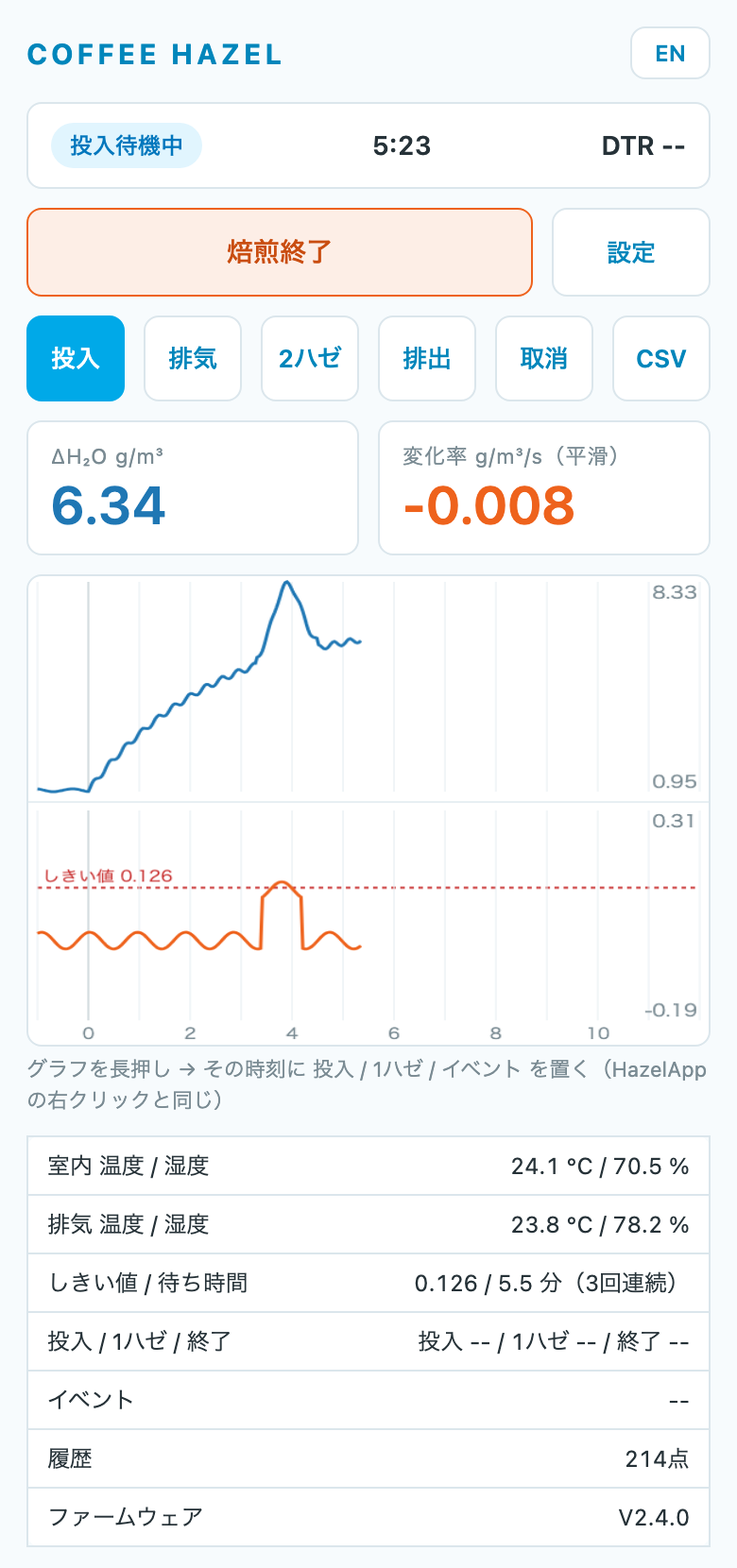
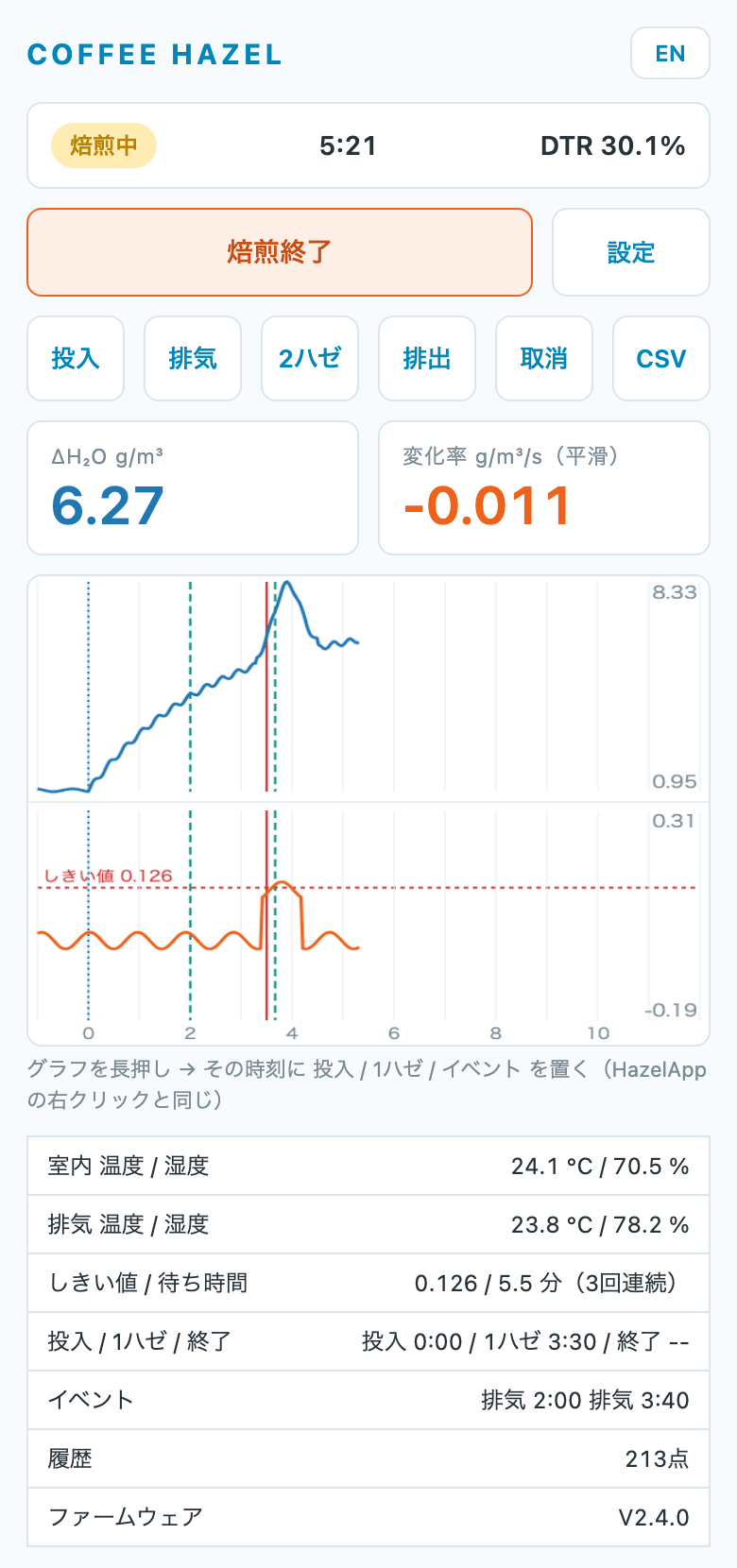
- Status — Standby / Waiting for charge / Roasting / Done, with the time since charge and, once first crack is detected, the DTR (time after first crack ÷ total roast time)
- ΔH₂O (blue) and rate of change (orange) — the difference in steam between exhaust and room, and how fast it is changing. The same values as in the desktop app
- Graph — ΔH₂O on top, rate of change below, with charge at 0 min and time running to the right. The red dashed line in the lower graph is the first-crack threshold: first crack is called when the rate rises above it. Charge is a blue dotted line, first crack a red line, and events such as airflow changes are colour-coded vertical lines
- Table — ambient and exhaust temperature and humidity, the current threshold and delay, the charge / first crack / drop times, recorded events, and the unit's firmware version
A roast, step by step
- Press Start Roast. The status becomes "Waiting for charge". To hear the alert sounds, press this button on the phone itself — browsers only allow sound on the device that was touched
- Charge the beans. The unit detects the sudden change in exhaust steam, the status becomes "Roasting" and the charge time becomes 0:00. If it is not detected automatically, press the Charge button (it is highlighted in blue while waiting)
- During the roast, Airflow, 2nd crack and Drop record an event at the current time. Undo removes the last one
- When first crack is detected, a chime plays and "1st crack?" is shown. Press Yes if it really was first crack, or No if not. After No, detection re-arms once the rate has dropped back below the threshold
- Press Stop Roast. The DTR and roast time are finalised. If you recorded a Drop, the roast time ends at the drop
- Press CSV to save the roast to the phone (iPhone: Files app / Android: Downloads). The file has the same format as the desktop app's, so the app's CSV viewer can open it
Correcting a record (long-press the graph)
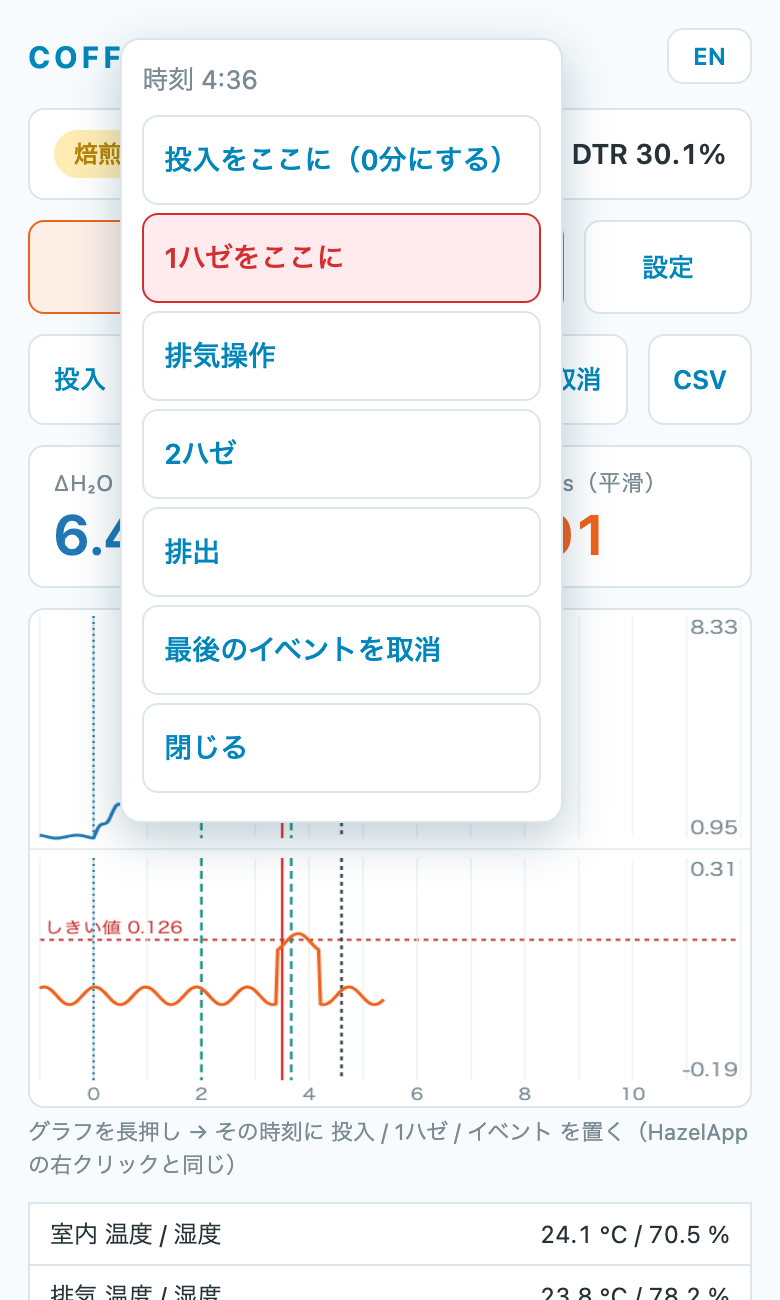
Long-press the graph to open a menu that places Charge, 1st crack, Airflow, 2nd crack or Drop at that point in time (the same as right-clicking in the desktop app).
- Charge here — moves the 0:00 point if the automatic detection was off. First crack and events shift with it
- 1st crack here — records first crack afterwards if it was not detected, or if you pressed No by mistake. The DTR and the CSV follow
- Works during the roast and after it has ended
Threshold settings and bean presets
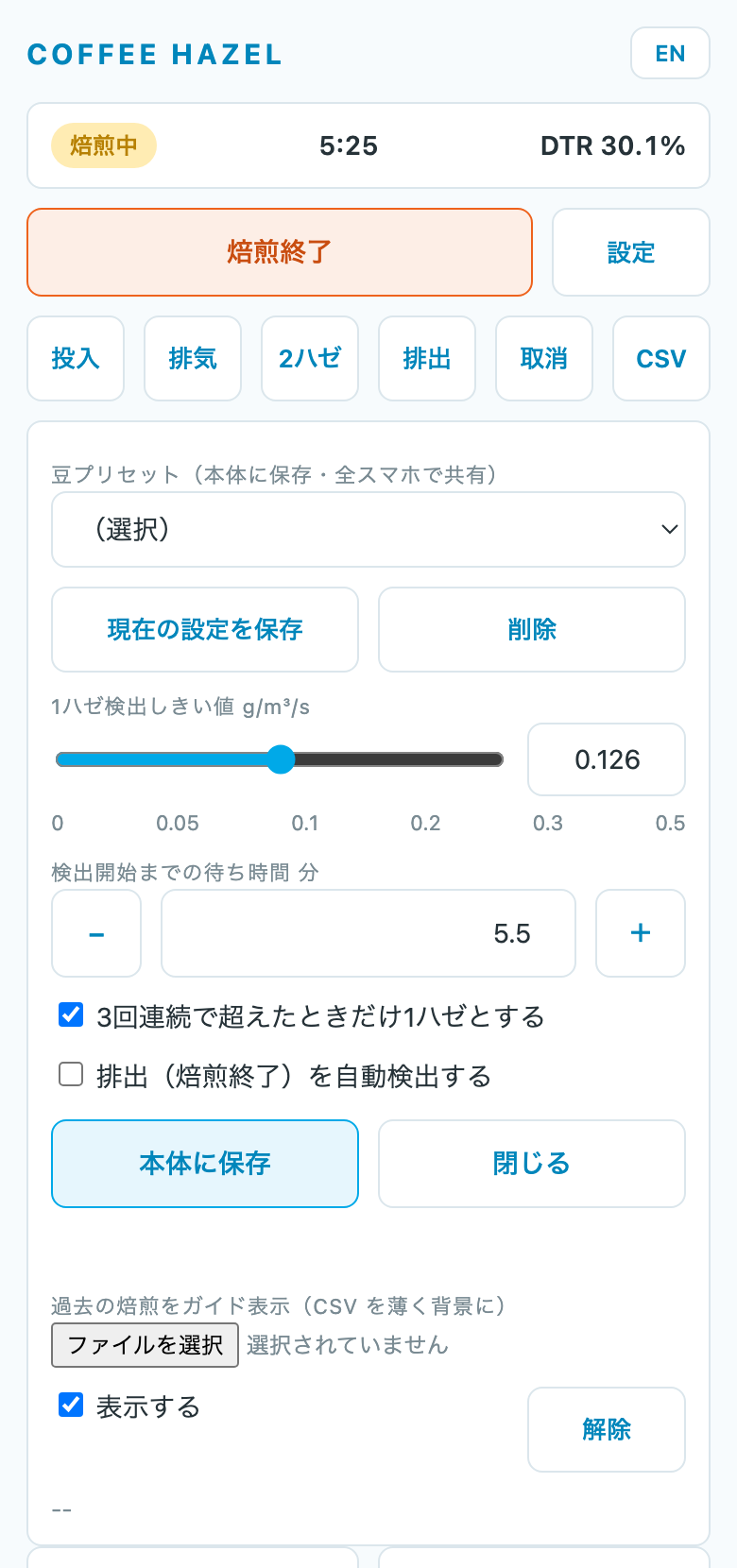
Settings opens the values used to decide first crack. Save to device stores them in the COFFEE HAZEL unit, where they survive a power cycle.
- 1st Crack Threshold — first crack is called when the rate of change (g/m³/s) rises above this. Set it with the slider or the number field
- Detection start delay — no first-crack decision is made for this many minutes after charge, to avoid false alarms from the early roast and airflow changes
- Require 3 consecutive readings — only call first crack after three readings in a row above the threshold (normally on)
- Auto-detect drop — ends the roast automatically on a sharp fall in ΔH₂O (normally off; keep it off when trying the sensor on a desk, where tiny fluctuations would end the "roast")
The right threshold depends heavily on the roaster and the bean. For a new bean start around 0.05–0.13, and press No if it fires early. Afterwards, look at the rate-of-change graph in the CSV and choose a value that only the real first-crack peak exceeds for next time.
Save the settings as a named bean preset and next time you only need to select it. Presets are stored in the unit, so every phone sees the same list (up to 20).
Overlaying a previous roast
Under Settings, "Show a past roast as a guide" lets you pick a saved CSV; its curves are drawn faintly behind the live graph. When roasting the same bean again you can compare progress and the first-crack time. CSVs saved by the desktop app work too.
Several phones, and the desktop app
- Any number of phones can open the page at the same time. Settings, presets and the roast state live in the unit, so every phone shows the same thing and any of them can operate it
- The desktop app and Artisan can be used at the same time; they work as before
- EN / 日本語 at the top right switches the language
If something does not work
| The QR code screen does not appear | The unit is probably in Bluetooth mode, or the firmware is older than V2.4. Connect to Wi-Fi (7) and update to V2.4.1 or later (13. Updating the firmware) |
|---|---|
| The page does not open after scanning | Check that the phone is on the same Wi-Fi as the unit. It cannot be reached over mobile data (4G/5G), a different Wi-Fi network, or a guest network. See 14. If the app will not connect |
| No first-crack sound | Sound only plays on the phone that pressed Start Roast. After reopening the page, press Start Roast again on that phone. An iPhone with the silent switch on will not play it |
| Part of the graph disappeared | Reload the page. The record is still in the unit and the whole graph is redrawn |
13. Updating the firmware
Firmware is updated over the internet, from the unit itself. No computer or cable is involved.
Updates cannot be made in Bluetooth mode. Connect to 2.4GHz Wi-Fi first (see 7. Connecting to Wi-Fi).
How to update
- Check that the unit is on Wi-Fi — if the data screen shows an IP address, it is connected
- Press and hold the display button (1)
- "Checking for updates..." appears while it looks for a newer version
- Then, depending on what it finds:
- Already current: "Already up to date." appears with the version, and the previous screen returns
- An update is available: "Update available!" appears with the current and the new version. Press the display button (1) again to start. If you do nothing, it cancels itself after 15 seconds
- "Downloading..." appears with the progress as a percentage
- "Update complete! Restarting..." appears and the unit restarts by itself. The update is done
If it will not update
| WiFi not connected. Cannot check for updates. |
The unit is not on Wi-Fi. See 7. Connecting to Wi-Fi. This message also appears in Bluetooth mode |
|---|---|
| Update check failed. Could not parse release info. |
The update information could not be fetched. Check that you have internet access, wait a little, and try again |
| Update failed. No update applied. |
The connection was probably interrupted during the download. Try again somewhere with a better signal |
| Firmware asset not found in this release. |
Something is wrong at our end. Please contact us |
The firmware version currently installed is shown on the logo screen at power-up.
14. If the app will not connect
Follow these checks if the desktop app shows "API Error" and no data appears. Work through them in order — step 1 or step 2 solves it in almost every case.
Step 1: check the COFFEE HAZEL unit
- Is an IP address shown on the data screen?
If not, the unit is not connected to Wi-Fi. See 7. Connecting to Wi-Fi. - Does the IP address you typed into the app match the one on the screen right now?
Depending on your router, the number can change every time the unit is powered on. If it keeps changing, see Giving the unit a fixed IP address. - Is the unit running in Bluetooth mode?
Wi-Fi communication is not available in Bluetooth mode. Switch the app's connection mode to Bluetooth instead.
Step 2: check your computer
More often than you might expect, the problem is that the computer itself is not on the network. In that case there is nothing wrong with the COFFEE HAZEL unit.
- Is aeroplane mode switched on?
Check the notification area at the bottom right of the screen and turn it off if you see an aeroplane icon. On laptops, the wireless radio can also be switched off with a key combination such as Fn + F8 (or F12), or by a physical switch on the side of the machine. - Are the computer and the COFFEE HAZEL on the same Wi-Fi network?
Compare the SSID shown on the unit's screen with the network your computer is connected to. - Are you using a VPN?
A VPN connection can cut off access to other devices on the same Wi-Fi network. Try disconnecting it.
Step 3: check your computer's network settings
If step 2 does not help, find out which network your computer is actually on.
On Windows
- Hold the Windows key and press R
- Type
cmdand press Enter (a black window opens) - Type
ipconfigand press Enter - Compare the "IPv4 Address" against the table below
| Nothing is listed (blank under "Windows IP Configuration") |
Your computer's networking is switched off entirely. Check aeroplane mode and the wireless switch (step 2, item 1). This is the most common cause |
|---|---|
| Starts with 169.254 | Your computer has not received an address from the router. Restart the router and the computer |
| First three numbers differ from the unit's IP address |
The computer and the unit are on different networks. Reconnect both to the same Wi-Fi (for example, the unit is on 192.168.0.107 but the computer is on 192.168.1.5) |
| First three numbers match the unit's IP address |
The network is fine. Please get in touch — see 18. Contact |
Reading the error message
The number at the end of the error shown in the app narrows down the cause.
| 10051 A socket operation was attempted to an unreachable network |
Your computer is not connected to a network. Nothing is reaching the COFFEE HAZEL at all. Go to steps 2 and 3 |
|---|---|
| 10060 A connection attempt failed because the connected party did not properly respond… |
Traffic is leaving the computer but nothing answers. Check that you are not on a guest network (see below), and that the unit is powered on |
| 10061 No connection could be made because the target machine actively refused it |
Another device may be using that IP address. Check the IP address shown on the unit's screen again |
| 10013 An attempt was made to access a socket in a way forbidden by its access permissions |
Security software or a firewall is blocking the connection. Check its settings |
Do not use a guest network
A guest network still reaches the internet, so the unit's clock will set itself and firmware updates will succeed. But guest networks deliberately block devices from talking to one another, so the app, Artisan and even a web browser will all fail to reach the COFFEE HAZEL.
Router settings called "privacy separator" or "AP isolation" cause exactly the same symptom. Connect to your ordinary (non-guest) 2.4GHz Wi-Fi.
If none of this helps, please get in touch — see 18. Contact. It helps a great deal if you include the full error message from the app and the result of ipconfig from step 3, as a photo of the screen if that is easiest.
15. How the system fits together
16. How first crack is decided
17. Warranty
The warranty runs for one year from the date of purchase.
Faults arising from use outside normal operation, deliberate damage, and damage from fire, disaster or accident are not covered.
Please register as a user when you buy.
18. Contact
SORAMAME LAB INC
11-1 Sayama, Kawauchi, Kawasaki-machi, Shibata-gun, Miyagi 989-1503, Japan
(inside KURIYA COFFEE ROASTERS)
Telephone: +81 224-88-9019 (Japanese only)
Contact form
19. Radio certification
| Radio | Wi-Fi 2.4GHz band (IEEE 802.11 b/g/n) |
|---|---|
| Certification | Contains a radio module certified under Japanese radio law (certification number 211-221219). The unit is certified for use in Japan only and is not certified for use in other countries |